

Convert PDFs and scans to editable Word
Real paragraphs and tables, never floating text boxes. One shared credit pool, limits per member and usage reports.
- Upload
- Choose pages
- Convert
Upload a PDF
or drop a PDF or image here
No account or card required · PDF, JPG or PNG up to 50 MB · scans welcome · not password-protected
Files from your free page are deleted 24 hours after you convert it. Scanned and complex pages are read by Microsoft. How we handle your files
9 real scans compared: 0 floating frames or text boxes in our Word files, 442 frames and 16 text boxes in a leading desktop OCR program’s. See them
See team plans from $9 a month
A real conversion, unedited
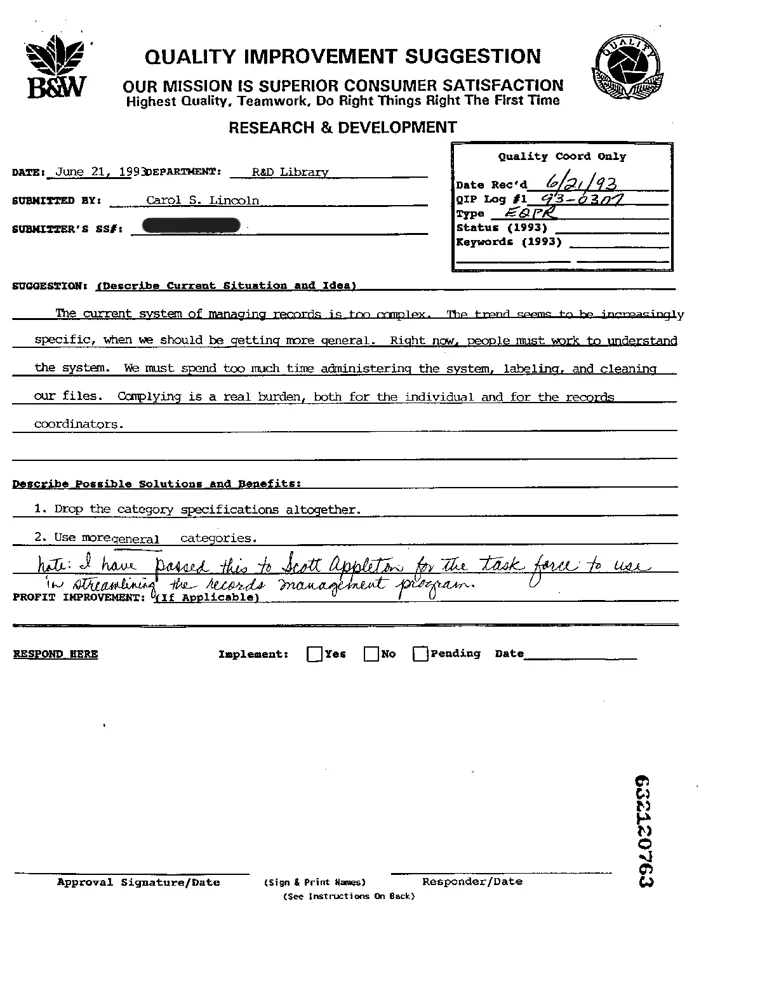
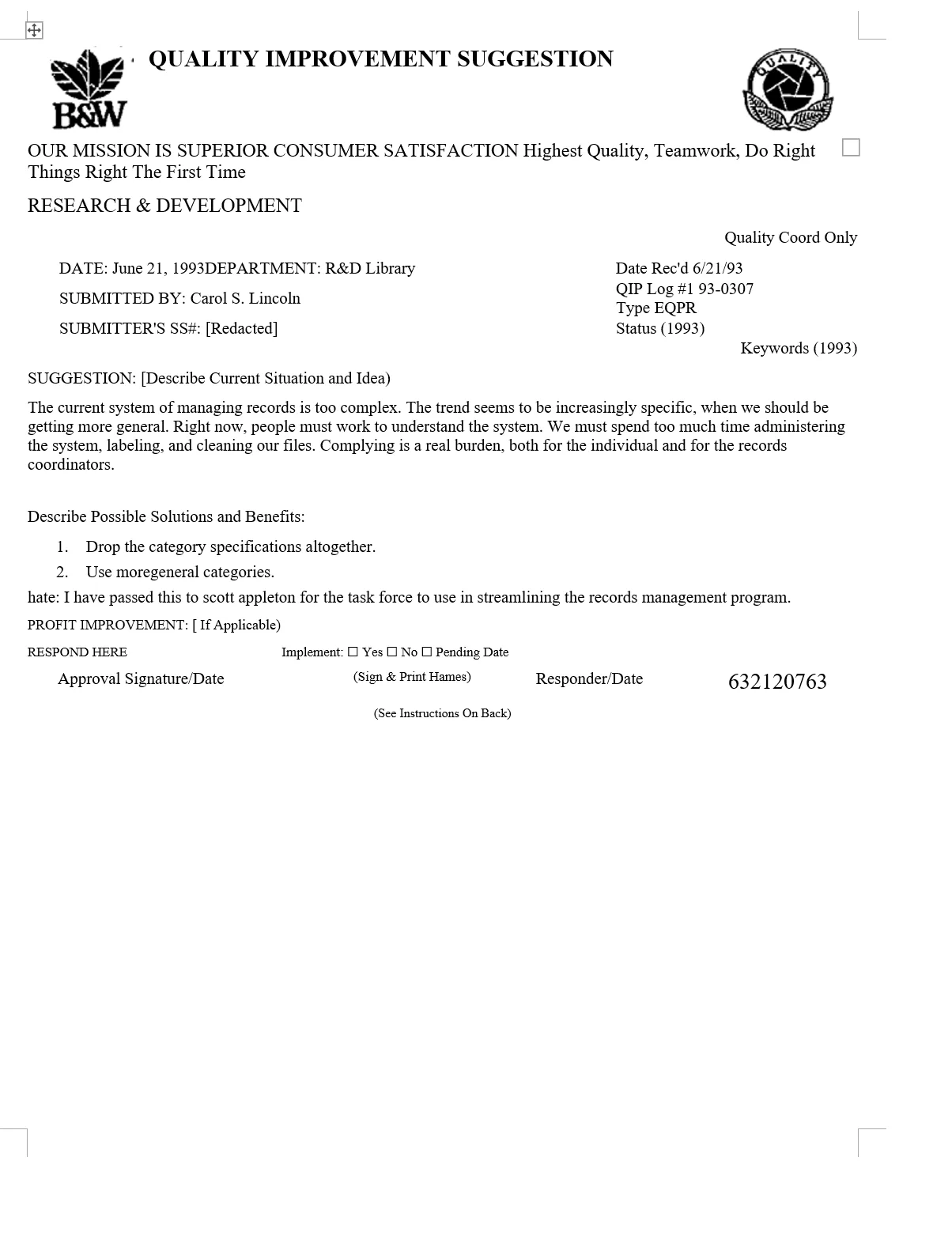
A scanned 1993 form from a public archive: typed fields, a handwritten note, tick boxes and a blacked-out number. This is exactly what came back.
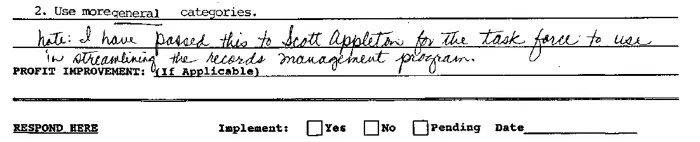
The handwritten note, close up

What came through, and what needed fixing
Came through as editable Word
- The handwritten note as typed text
- The blacked-out number as “[Redacted]”, so nothing hidden is guessed
- The handwritten box entries: 6/21/93, 93-0307 and EQPR
- The tick boxes as “☐ Yes ☐ No ☐ Pending”, and the two solutions as a real numbered list
- The title in Word's Title style, the fields in tables, both logos kept as pictures, and no text boxes or floating frames
Needed a quick fix by hand
- In the handwritten note, “Note:” was read as “hate:” and “Scott Appleton” as “scott appleton”
- “(Sign & Print Names)” became “Hames”, and two opening brackets became “[”
- The form's lines for writing on are gone, and section labels are plain text, not Word headings
- The font is Times New Roman instead of the scan's typewriter font
Check it yourself: the scan (PNG, 217 KB) · Word result (DOCX, 16 KB) The Social Security number was blacked out on the scan before converting.
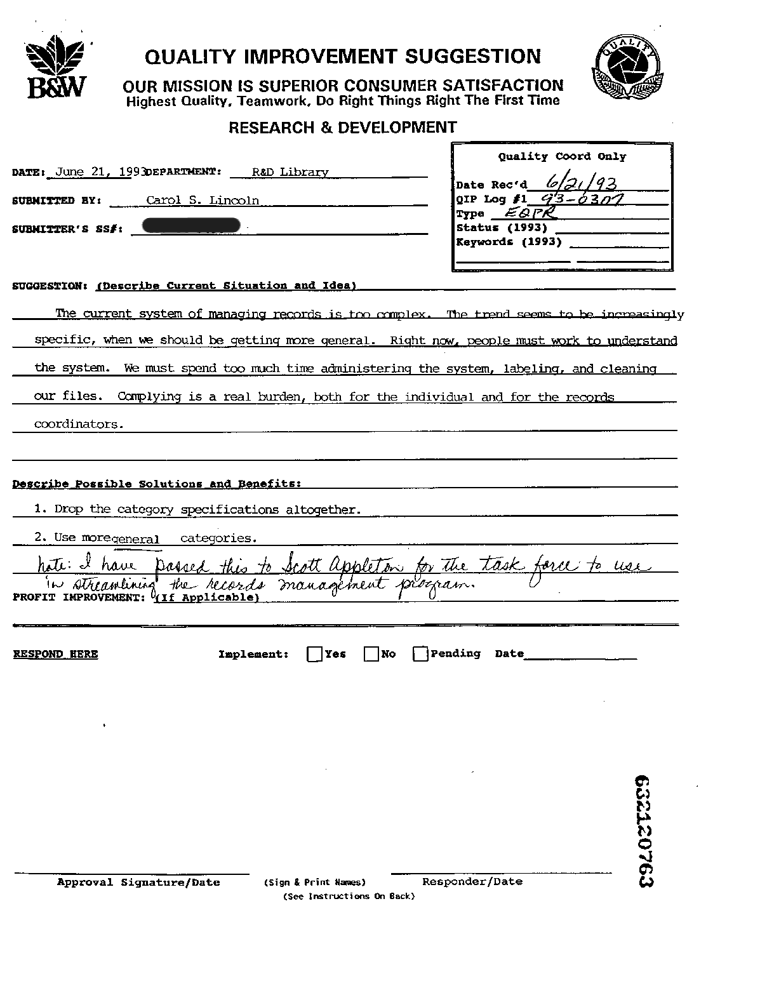
How does it compare? See this scan and 8 more converted by a leading desktop OCR program and by UnfoldPDF, side by side.
See it next to desktop OCRBuilt for teams
Create a team workspace, invite people by email, and convert from one balance.
-
One credit pool
Everyone converts from the same balance; monthly plans include up to 3, 5 or 20 people.
-
Spending under control
Set a monthly credit limit for each member. Only the owner and admins can buy credits or see billing.
-
See who used what
Pages converted per person each month, with a CSV download. Admins see usage, never documents.
-
Work in projects
Group conversions and translations by client or job. When someone leaves, their files stay in the team’s storage until their normal deletion date.
Less cleanup after every conversion
-
Edit right away
Ordinary paragraphs, headings, lists and tables, with no frames or text boxes to unpick.
-
Know what to check
Words that may be misread in a scan are listed, with a suggestion when there is one. Your text is never changed for you.
-
Private by default
Files are stored privately and deleted on a schedule: 24 hours for the free page, 14 to 180 days with an account. Documents are used only to convert or translate them.
What are you converting?
-
Scanned PDF to Word
Upload a scan or a photo of a page and get Word text you can edit. Your first page is free.
-
PDF tables to Word
Get the tables in a PDF or a scan as real Word tables you can edit. Your first page is free.
-
PDF forms to Word
Turn a form, scanned or filled in, into Word with its boxes as tables and its tick boxes kept. Your first page is free.
Guides with real examples: Complex tables
How to convert a PDF to Word
-
Upload a PDF or image
A digital or scanned PDF, or a JPG or PNG, up to 50 MB.
-
Choose pages
Pick only the pages you need. Each page uses one credit.
-
Convert and download
Check the text on screen, then download the .docx.
PDF to Word questions
What kinds of files work?
Digital PDFs (made from Word, a browser or another program), scanned PDFs, and single images such as a phone photo or a scan saved as JPG, PNG, WebP, GIF or BMP. An image is converted as one page. Text, headings and tables are rebuilt as Word content. Extraction accuracy depends on document quality. Complex multi-column layouts, handwriting, or low-resolution scans may require manual review.
Will the Word file look exactly like my PDF?
Not exactly. You get a clean, editable document that flows like a normal Word file; fonts and spacing can change. To start each PDF page on a new Word page, turn on Keep page breaks in the conversion settings, or on the result screen before downloading.
What about recognition mistakes?
On digital PDFs, the text read from the page is checked against the PDF's own text where possible, and differences are corrected. On scans, Flag scanning errors (on by default) lists words that may be misread: words the recognition was unsure of, a number or code read differently elsewhere in the same document, a letter among digits, or a Japanese character in Chinese text. Each comes with a suggestion when there is one, and nothing is changed for you. Turn on Mark flagged words in the Word file to have them highlighted in Word.
Who reads my document?
Scanned pages and pages with tables, images or columns are sent to Microsoft, which reads the text and layout and returns them to us. Pages that contain only plain digital text are read on our own server instead. We don't use your documents for anything except converting them. See who processes your data.
What happens to my files?
Files are stored privately and only you can download them. Files from a free page converted without an account are deleted 24 hours after you convert it; if you then sign in from the same browser, you can save it to one of your projects instead. Account conversions are kept 14 days on the free tier and with credit packs, and up to 180 days on monthly plans, then deleted. See the privacy policy.
Can my team share credits?
Yes. A team workspace has one balance that every member converts from. The owner or an admin can set a monthly credit limit for each member, and only they can buy credits.
Can admins see our documents?
No. They see how many pages each person converted and when, not the files or their names. Each person’s documents are visible only to them.
What happens when someone leaves the team?
They lose access to the team workspace straight away. Their files don’t move to their personal account: they stay in the team’s storage until their normal deletion date, then are deleted.
Good to know before you convert
- Digital and scanned PDFs, and single images (JPG, PNG, WebP, GIF or BMP), up to 50 MB. An image becomes one page and must be between 50 and 10,000 pixels on each side. TIFF and HEIC aren't supported yet, and password-protected or encrypted PDFs (including ones only restricted from editing) need to be unlocked first.
- The result is ordinary Word paragraphs, headings and tables, never floating text boxes. Fonts, spacing and alignment can change, as in the example above.
- Pictures are kept: images placed in a digital PDF, and picture areas cut from a scan. A drawing made of lines and shapes rather than an image can be left out, so check illustrations.
- Lists keep one level: nested lists are flattened, and some bullets come through as plain text.
- Printed text in many languages; Chinese, Japanese and Korean get suitable Word fonts. Right-to-left languages such as Arabic and Hebrew aren't laid out right to left yet. Handwriting and low-resolution scans may need manual review.
- Recognition can misread similar characters in a scan. Words that may be misread are listed for you to check, with a suggestion when there is one; your text is never changed for you.
Try it on your own document
Your first page is free. No account, no card.
Choose a file